Deploy EDGE on Azure
This section guides you through the steps to get the Anapaya EDGE Appliance from the Azure Compute Gallery up and running.
Prerequisites
Before you can start, you need to have an Azure account. If you do not have one yet, create one on Azure. You also need to have a SCION access into the Azure cloud. If you do not have one yet, contact the Anapaya customer success team.
Installation
The Anapaya EDGE appliance is available on the Azure marketplace.
Start an Anapaya EDGE VM using one of the recommended instance types. You can always change the
instance type later on if you want to improve performance. Use anapaya as the username for the
Administrator account and use SSH public key based authentication.
System Requirements
The Anapaya appliance has the following minimum system requirements when deployed on Azure:
- CPU: Minimum 4 vCPUs
- Memory: Minimum 4GB of RAM
- Storage: Minimum 80GB of disk space
- Network: The VM needs to support Accelerated Networking
Cloud-Init
You can use cloud-init to further customize the appliance during the launch process, for
example to set SSH keys for the anapaya user.
#cloud-config
users:
    - name: anapaya
      ssh_authorized_keys:
          - ...
Refer to the cloud-init documentation for more examples and details.
The Anapaya appliance will overwrite the SSH keys of the anapaya user as soon as the first
configuration is applied. This means that the SSH keys you set in the cloud-init configuration will
be removed. If you want to keep the SSH keys, you need to configure them in the appliance
configuration during initial configuration.
VNET configuration
It is recommended to launch the appliance in a VNET with three subnets. The first subnet is used for the management interface, the second subnet is used for the SCION interface towards the SCION network; the IP addressing details of this subnet are provided by your SCION access provider and the third subnet is used for the application interface towards your applications.
Security group configuration
If you want to access the appliance from the Internet via SSH, you need to configure the security
group to allow incoming SSH connections. The appliance uses port 22 for SSH.
Connecting to the appliance
Once the appliance is launched, you can connect to it via SSH or use the Azure Serial console. Use the credentials that you configured on instance creation. As part of the appliance configuration, you can configure the appliance to use your SSH keys for login. See Management for more details.
Password authentication for SSH is disabled.
Configuration
After connecting to the appliance, configure it by following the steps in Setup.
The appliance is configured to use DHCP on initial launch. When you start changing the appliance
configuration, you should first configure the interfaces section with the values for the
management interface that were potentially assigned during VM boot via DHCP. Otherwise, you might
lose connectivity to the appliance.
Relevant values include the IP address and routing information.
NAT configuration
In some scenarios you might need to configure NAT on the appliance; for more details, refer to the NAT section in the general configuration guide. For example, you may need NAT when a service must be exposed on a public IP to the SCION network but is running on a private IP.
Redundancy
To achieve redundancy, you can deploy two appliances in different availability zones and configure them in the Connected EDGE mode. There are two approaches to redundancy: dynamic and static.
Dynamic Redundancy
Dynamic redundancy uses BGP integration with the Azure Route Server to automatically route traffic to the active appliance.
Refer to the Azure Route Server Documentation for more details
When configuring a BGP session between the EDGE and the Azure Route Server, you must enable
ebgp_multihop. Without it, the prefixes received from the Azure Route Server will not be installed
in the EDGE's routing table nor advertised to SGRP. For more information please visit the Azure
Route Server FAQ
.
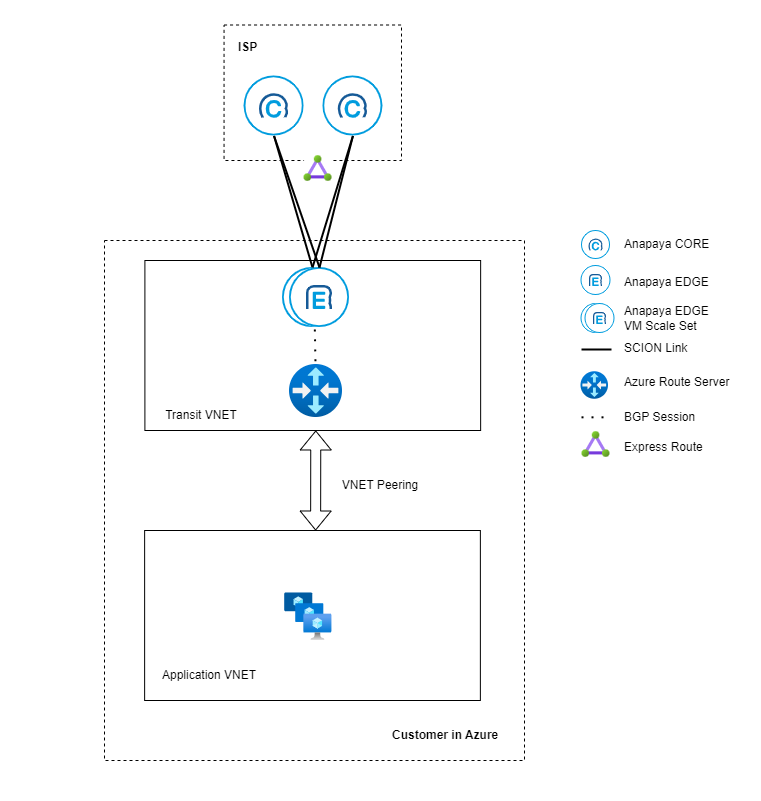
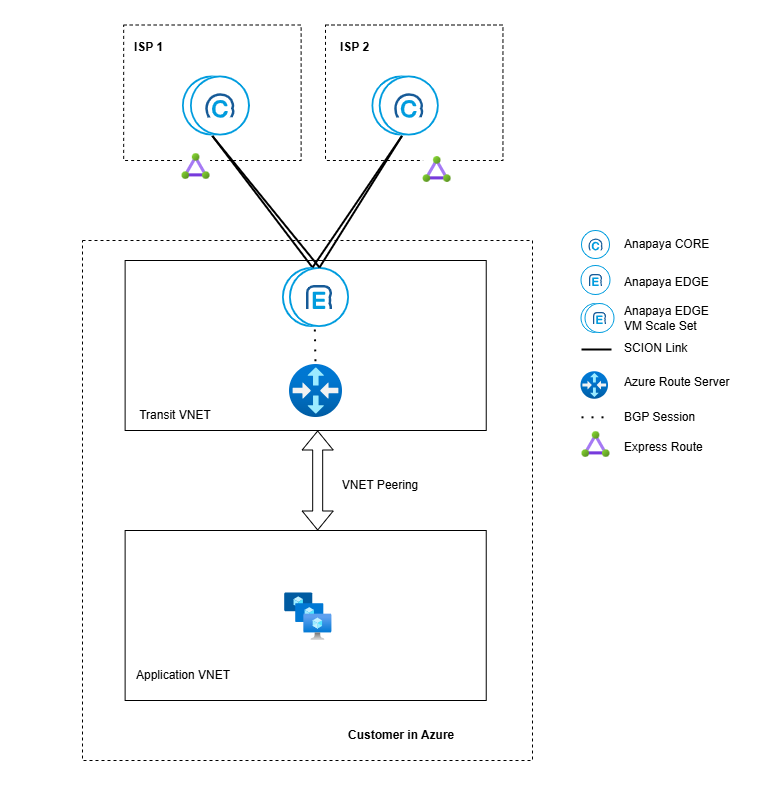
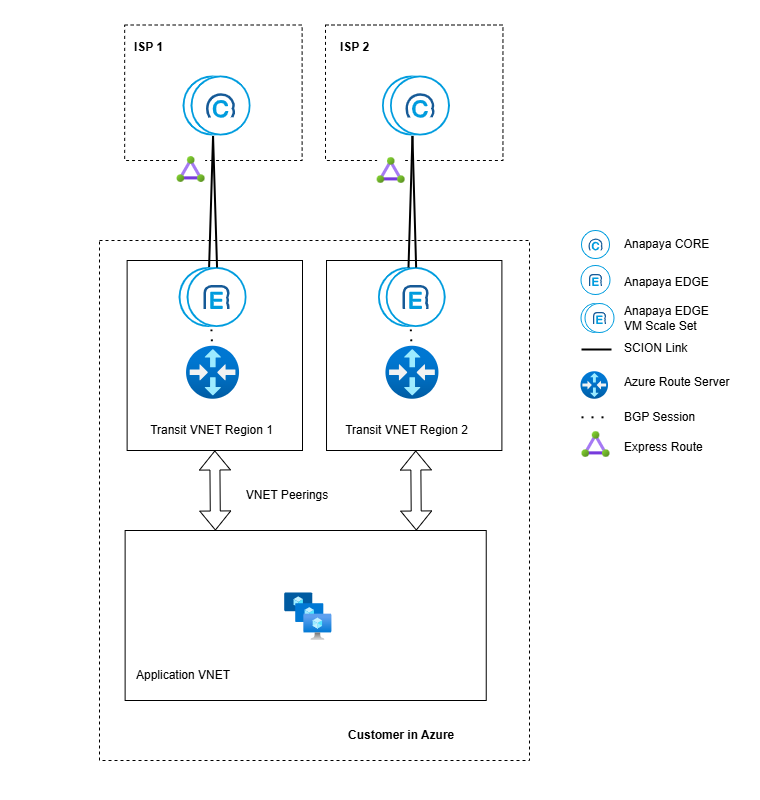
The diagrams below show different examples of how you can deploy the Anapaya EDGE appliance in Azure within and across regions. In all cases, the EDGE appliances are run as part of a Virtual Machine Scale Set, but you can also run them as individual VMs in different availability zones. The EDGE appliances are connected to the SCION network via the Express Route provided by the SCION Access Provider (ISP). Inside the Azure VNET (Transit VNET), the appliances are connected to the Azure Route Server to exchange routing information with the Azure network. It is recommended to use a separate VNET for the applications that use the SCION connectivity and connect it to the Transit VNET via a VNET peering.
- Single ISP
- Dual ISP
- Dual ISP in different regions
A single SCION ISP can provide SCION connectivity to multiple EDGE appliances in an Azure VNET.
If you require ISP redundancy for your applications, you can connect the EDGE appliances to two different SCION ISPs. One EDGE appliance can be connected to one or more ISPs, depending on the offerings of the SCION ISPs.
If you require ISP redundancy across regions, you can connect the EDGE appliances to two different SCION ISPs in different regions.
Static Redundancy
Static redundancy uses the Azure Internal Load Balancer to distribute traffic across multiple appliances. The load balancer performs health checks on the appliances and routes traffic only to healthy instances. This approach is simpler to configure than dynamic redundancy but provides less flexibility in routing decisions.
To configure static redundancy:
- Create a VNET with two subnets: one for the EDGE appliance LAN interfaces and one for the WAN interfaces - towards the SCION connectivity provider.
- Deploy two EDGE appliances in Connected EDGE mode with two network interfaces each.
- Create an Azure Internal Load Balancer in the subnet used for the LAN interfaces.
- Configure the backend pool with the LAN interfaces of the EDGE appliances
- Set up health probes to monitor appliance availability. E.g. using TCP on port 22. Make sure to update the appliance configuration to allow health probes from the load balancer (firewall rule) and ensure connectivity (add a route towards the health probe sender on the LAN interface).
- Configure load balancing rules for the relevant ports, or select
High availability Portsto load balance all TCP/UDP ports.
- Set up another subnet (or VNET) with the applications/services that use the SCION connectivity and add routes for all SCION traffic pointing to the load balancer's frontend IP address.