License management
Install a new license
The current system leverages an “offline” process, meaning that you need to activate a new license and add it to the appliance. For this, a 3-step process is required, it is described in this section.
Get the license request file
The License Request File (LRF) is used on the Anapaya portal to generate a license. The LRF can be retrieved either via the Anapaya CONSOLE, or via the appliance CLI as described below.
- CONSOLE
- CLI
- Click on Appliances in the left menu.
- Select the appliance, for which you want a license request file.
- Click on the Software button.
- Click on the Get License Request button.
appliance-cli get software/licenses/request > license_request.json
Associate the LRF with the subscription in the Anapaya portal
In case you purchased the license through a reseller, please contact them for assistance with this step.
To associate the LRF with the corresponding subscription in the Anapaya portal, follow the steps below:
This step requires that a subscription has been ordered beforehand in the Anapaya portal.
-
Connect to the Anapaya portal with a user granted with the Activate licenses permission.
-
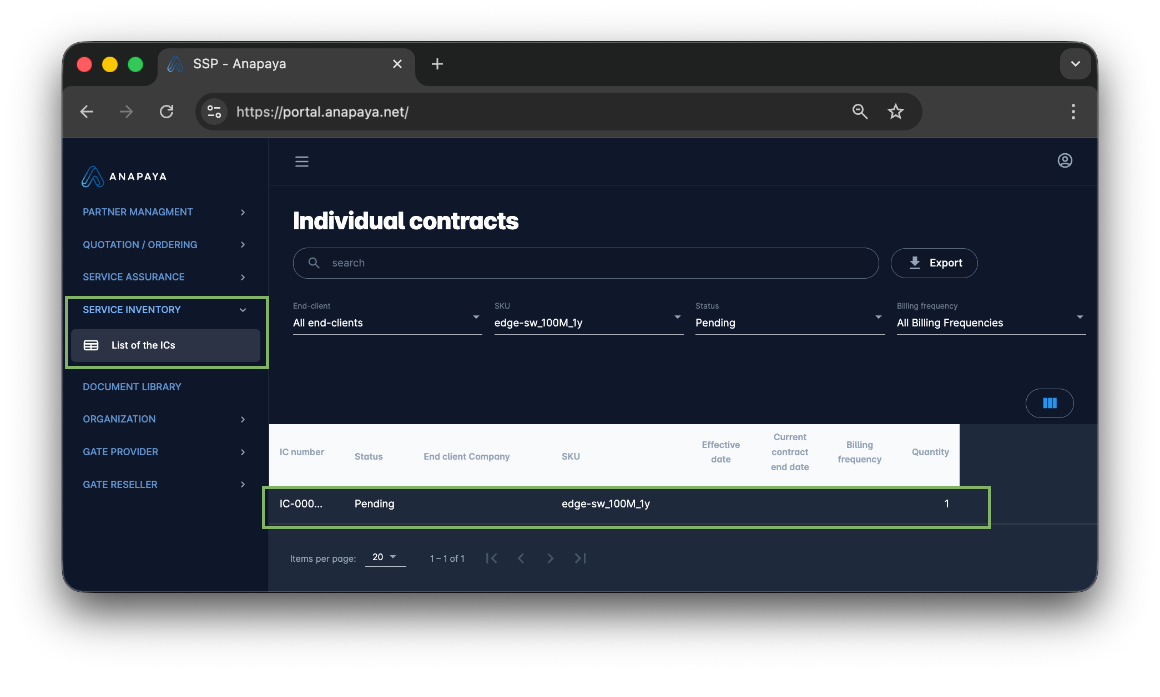
Go to the SERVICE INVENTORY module and select the List of the ICs menu.
-
Select the relevant Individual Contract (IC) from the list.
 note
noteCheck the “Status” filter to make sure you can see all the relevant ICs.
-
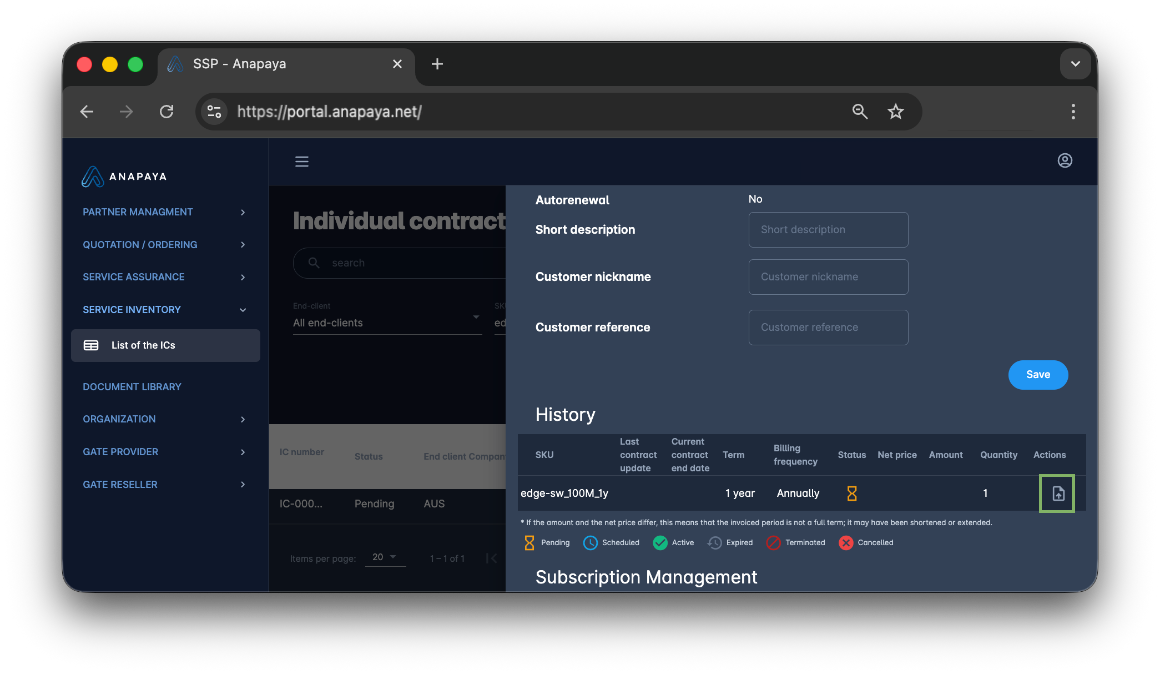
Upload the LRF file by clicking the Upload LRF and Generate License icon on the right and check the parameters.
-
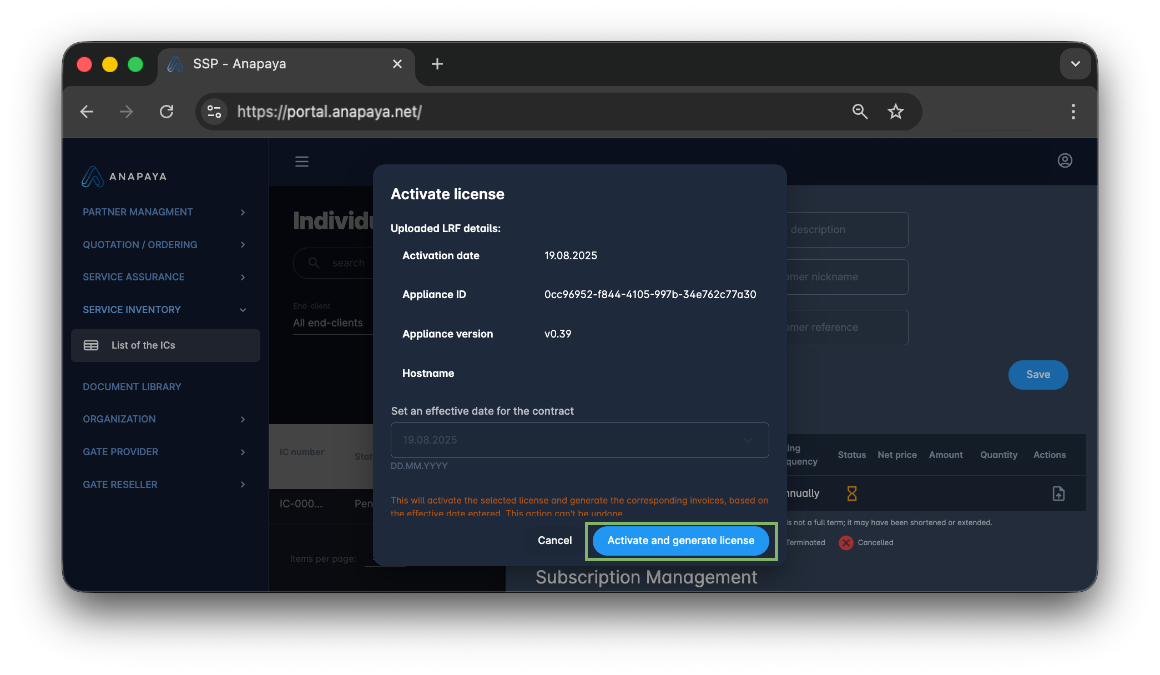
Submit the LRF by clicking Activate and generate license.
-
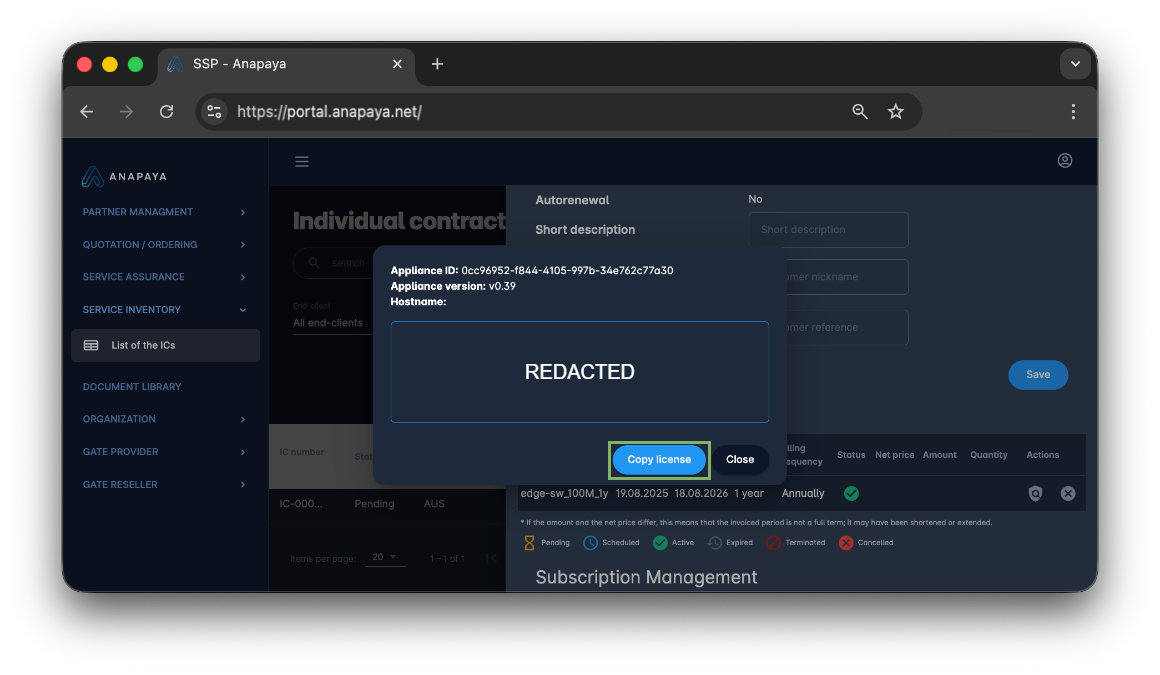
Retrieve the signed license and store it for the next steps, by clicking the Copy license button.
Upload the signed license
Use the Anapaya CONSOLE or the appliance CLI to upload the signed license to the appliance.
- CONSOLE
- CLI
- Click on Appliances in the left menu.
- Select the appliance, for which you want to add a license.
- Click on the Software button.
- Click on the Add License button.
Replace <license> in the command below with the signed license you copied in the previous step and
execute it on the appliance:
appliance-cli post software/licenses 'license: $license'
Check the license status
To check the status of the license on the appliance, either use the Anapaya CONSOLE or the appliance CLI as described below.
- CONSOLE
- CLI
- Click on Appliances in the left menu.
- Select the appliance, for which you want to check the license status.
- Click on the Software button.
- The license status is shown in the Installed License field.
Run the following command on the appliance to get the license status:
appliance-cli info license
Furthermore, you can check the status of the license in the Anapaya portal under the module Service inventory.
The status contains information about the license lifecycle, the product type and the product tier.
Install a renewed license
Depending on the license terms, it should be renewed periodically. To do this, you do not need to upload the LRF again; simply copy the automatically renewed license from the portal and upload it to the appliance. You can renew licenses in advance, as they are marked as active 25 days before their actual activation date.
Retrieve the renewed license in the Anapaya portal
-
Connect to the Anapaya portal with a user granted with the Activate licenses permission.
-
Go to the SERVICE INVENTORY module and select the List of the ICs menu.
-
Select the relevant Individual Contract from the list.
-
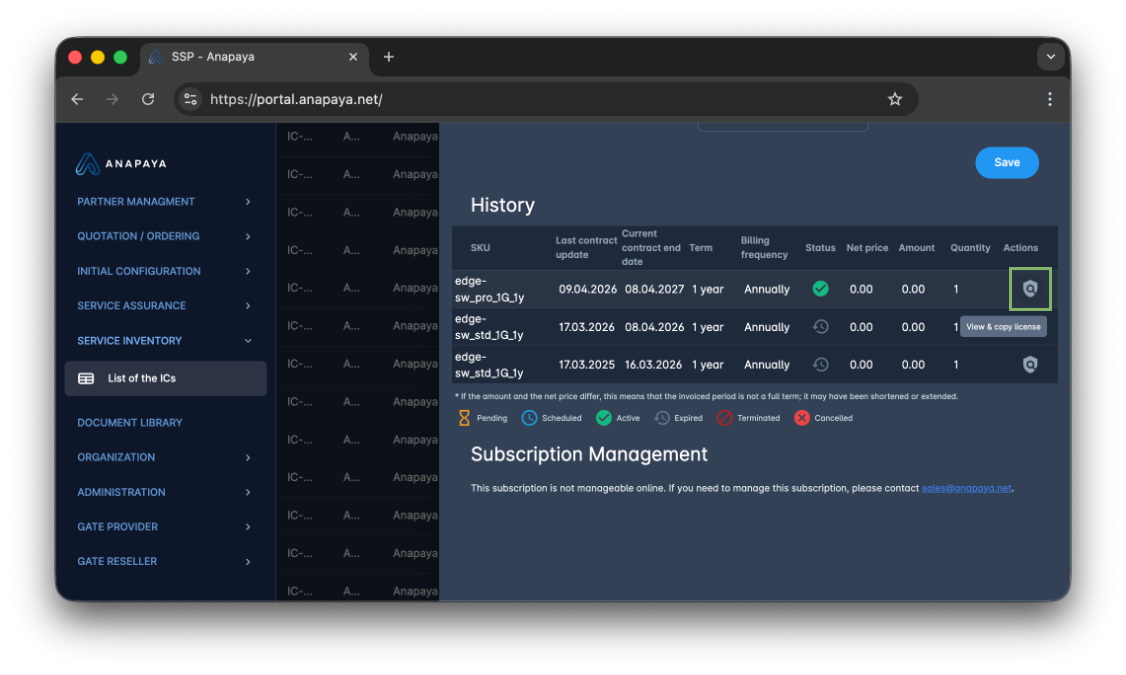
Find the latest license in the “History” section, check the parameters and retrieve the renewed license by clicking the View & copy license icon on the right.
-
Copy the license and store it for the next step by clicking the Copy license button.
Upload the signed license
Use the Anapaya CONSOLE or the appliance CLI to upload the signed license to the appliance.
- CONSOLE
- CLI
- Click on Appliances in the left menu.
- Select the appliance, for which you want to add a license.
- Click on the Software button.
- Click on the Add License button.
Replace <license> in the command below with the signed license you copied in the previous step and
execute it on the appliance:
appliance-cli post software/licenses 'license: $license'
Multiple licenses on the same Anapaya appliance
Multiple licenses can be installed on the same appliance. The system prioritizes valid licenses first by the number of features they enable, in descending order, and then by the expiry date. Licenses are never combined, meaning that only one license at the time is active.
List all installed licenses:
appliance-cli get software/licenses
Check which license is currently active:
appliance-cli info license
appliance-cli get software/licenses/status
If the wrong license is active, you need to remove it:
Removing the active license may result in restricted-functionality
mode.
appliance-cli delete software/licenses/$license_id
Troubleshooting
This section provides some initial steps to troubleshoot issues with the license management system.
Common issues
Appliance-level issues
If you encounter any issues when interacting with the appliance, please check the logs of the appliance-controller:
journalctl -eu appliance-controller.service
If you’re not able to resolve the problem, please contact the Anapaya support team.
Portal-level issues
In this case, please contact the Anapaya portal team.
When contacting support, please provide as much information as possible:
- The precise description of the issue and the potential error messages.
- The output of the
appliance-controllerlogs for the given time frame. - Any additional information that might be relevant (LRF, license file, etc.).
- The subscription identifier (IC) from the Anapaya portal.
Helpful commands
You can refer to Management API specification for the complete list of software-license endpoints to interact with the licenses on the system. Here are some useful appliance-cli commands to check the API endpoints:
-
Check the status of the licensing system:
appliance-cli info license
appliance-cli get software/licenses/status -
List licenses:
appliance-cli get software/licenses -
Add license:
appliance-cli post software/licenses 'license: $license' -
Get a specific license:
appliance-cli get software/licenses/$license_id -
Remove a license:
Potential reduced functionalityRemoving licenses from the appliance is generally not required, and removing the active license may result in restricted-functionality mode.
appliance-cli delete software/licenses/$license_id